

Subscription Reports
Paginated Reports provide detailed, print-ready reports with precise formatting for large datasets and formal documentation needs.
Paginated reports are pre-configured report templates connected to Power BI that pull structured data based on the filters a user selects. They are called "paginated" because they are designed to span multiple pages in a formatted, exportable layout — ideal for sharing with stakeholders or archiving for record-keeping.
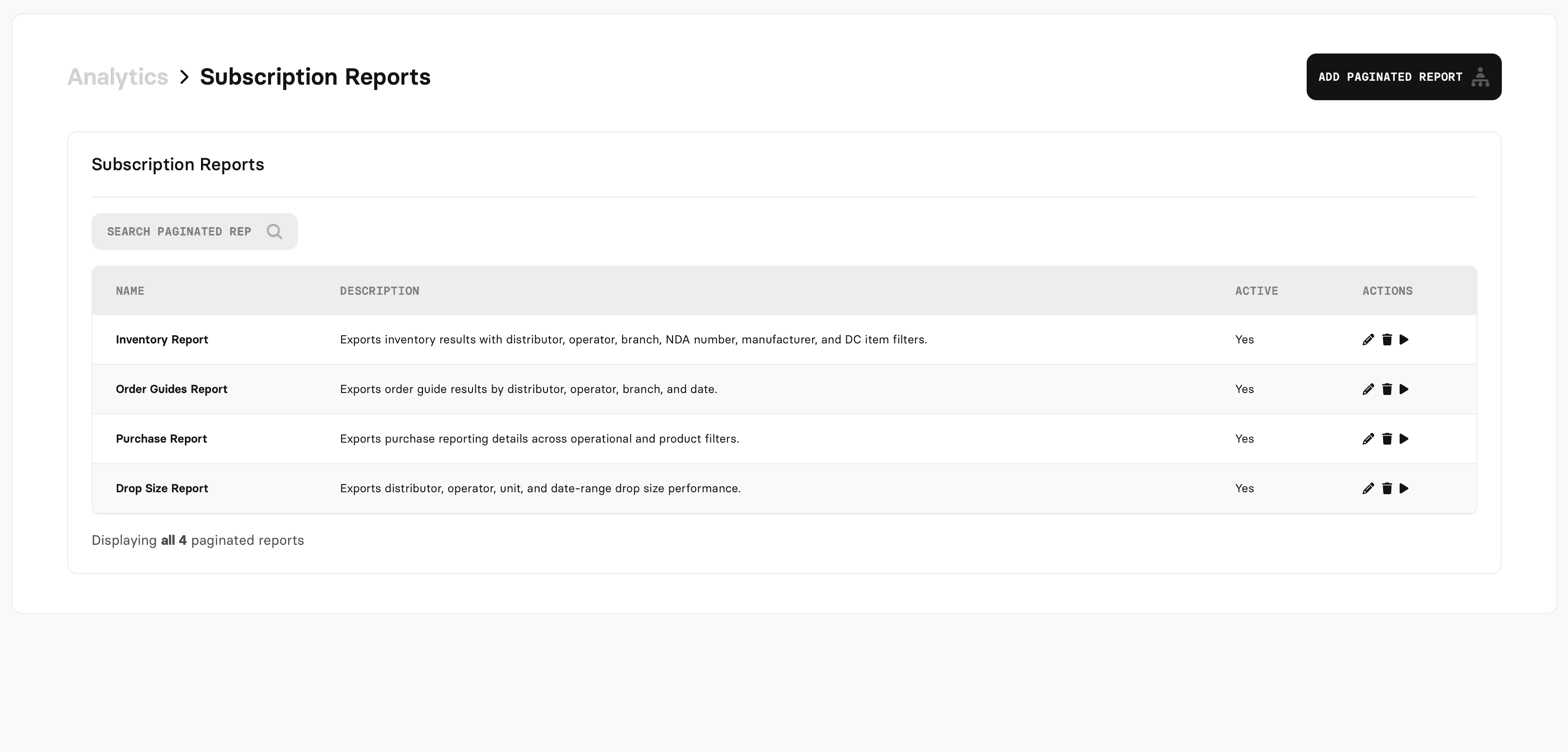
In NDA DataConnect, paginated reports live under the Analytics > Subscription Reports section. Currently available reports include:
Inventory Report
Order Guides Report
Purchase Report
Drop Size Report
Running a Paginated Report
To run a paginated report:
Navigate to Analytics and select Subscription Reports.
Click on a report name from the list to open it.
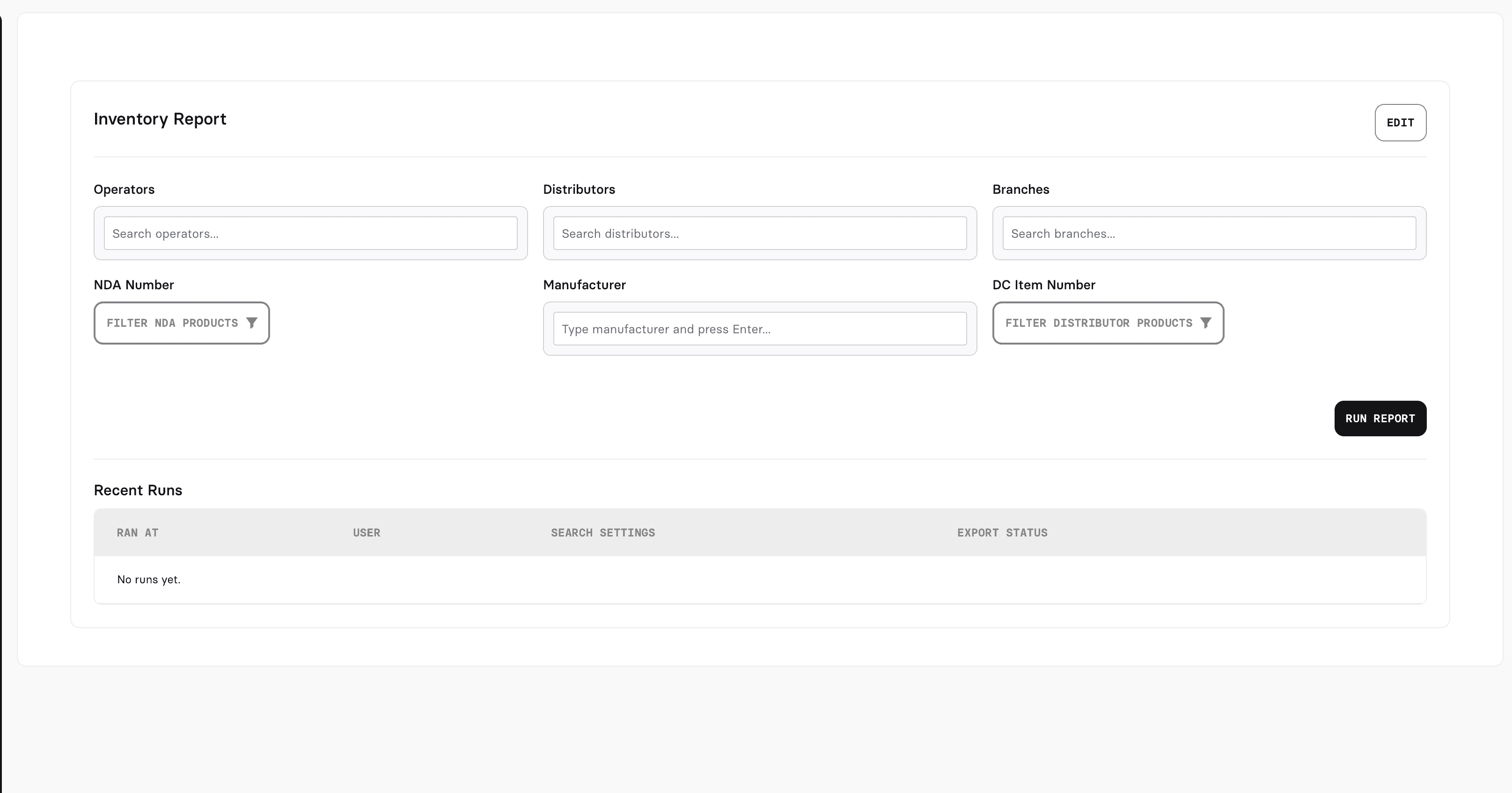
Apply the available filters to scope the data — options vary by report but may include Distributors, Operators, Units, Branches, Date From, Date To, and Active status.
Run the report to generate the output based on your selected filters.
The report will display paginated results that can be exported or printed.
Adding a Paginated Report (Admins)
Administrators can create new paginated report configurations by clicking Add Paginated Report in the top-right corner. The setup form includes:
Name — The display name for the report as it appears in the list.
Description — A brief description of what the report covers.
Report URL — The Power BI paginated report URL
Power BI Authentication — Select the BI Tool credentials used to authenticate with Power BI.
Enabled Filters — Choose which filter options are available to users when running this report. Available filters include:
Distributors
Operators
Units
Branches
Date From / Date To
Date
NDA Number
Manufacturer
DC Item Number
Category
Invoice
Active
Once created, the report will appear in the Subscription Reports list and be available for users to run immediately.
Managing Existing Reports
Each report in the list has three action icons:
Edit (pencil) — Modify the report name, description, URL, authentication, or enabled filters.
Delete (trash) — Remove the report from the list permanently.
Run (play) — Execute the report directly from the list view.
The Active column indicates whether the report is currently enabled for use.
Last Updated
Monday, March 23, 2026