


Exporting Data & Naming Exported Files
DataConnect allows you to export the data shown in any report or dashboard. This article explains how to export, where to find the export icon, and how file naming works.
How to Export Data
Navigate to the report you want to export.
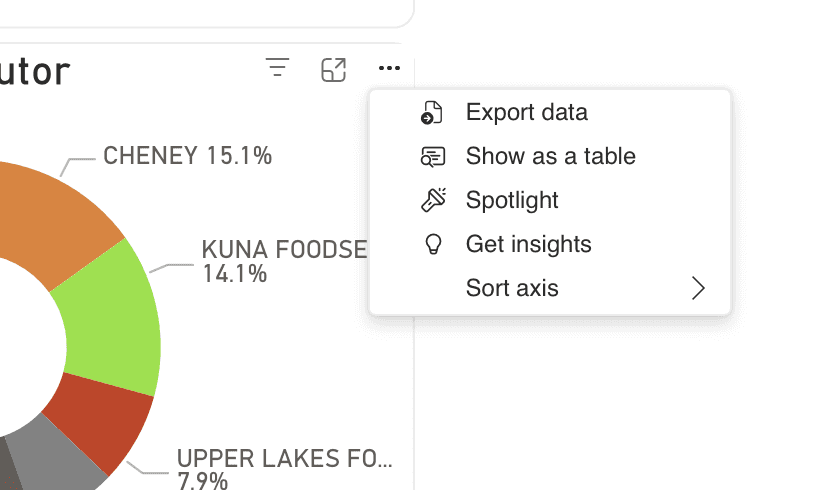
Hover over the top-right corner of the screen, or any data panel.
Click the Export icon (the download arrow icon).
This icon appears in all reporting views.
Your file will download immediately in your browser.
Important: How File Naming Works
The exported file is automatically given a name based on the report or table you exported.
You cannot rename the file before downloading.
To rename:
Download the file first.
Go to your computer’s Downloads folder.
Right‑click the file and rename it.
This ensures consistent file naming for automation and downstream processes.
Last Updated
Wednesday, December 10, 2025