

Adding Accounts and Managing Users
Learn how to add users and manage accounts
Important: Only internal NDA team members can add and manage users inside DataConnect.
Adding a New Account
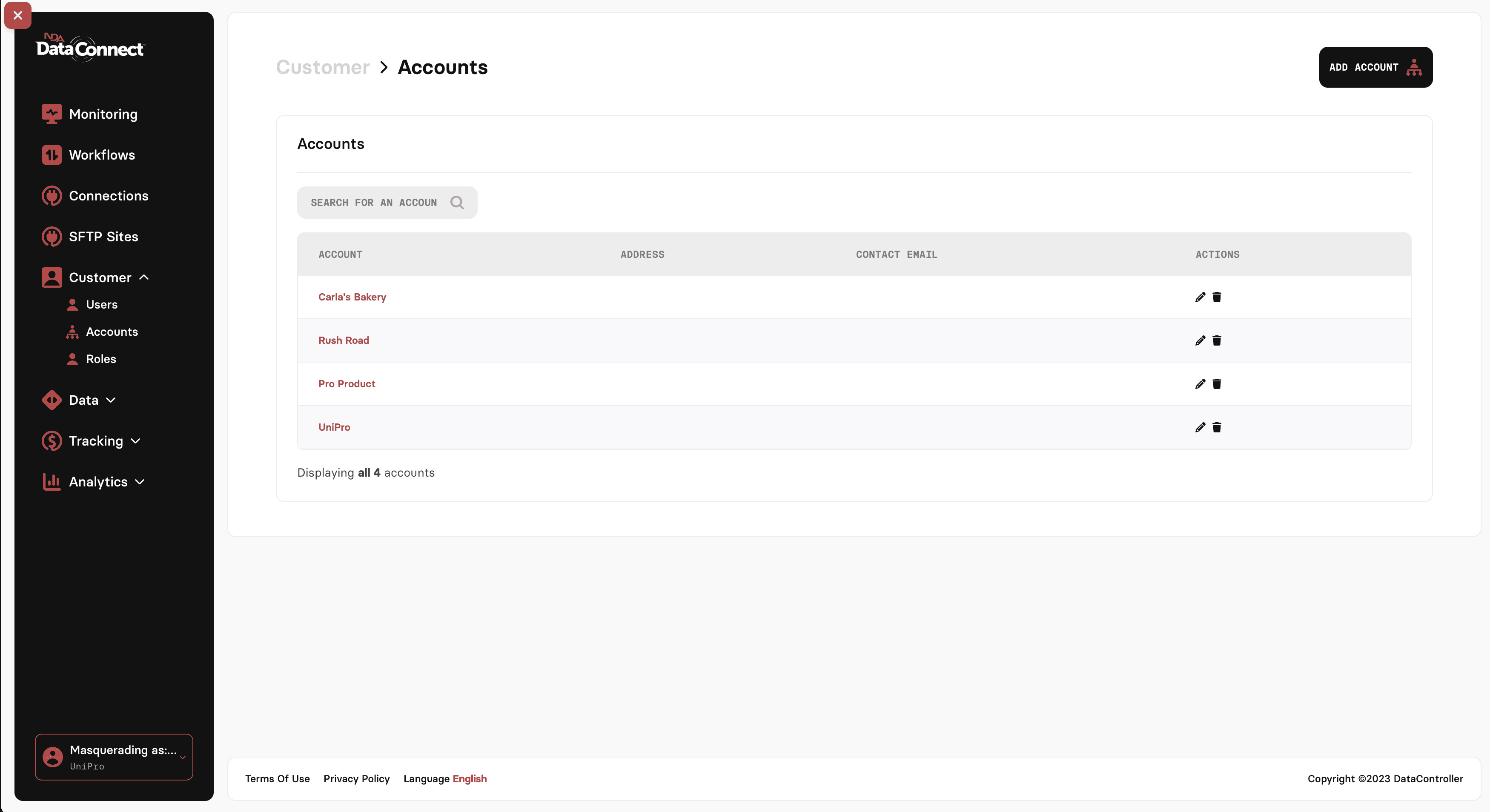
In the left navigation menu, click Customer then Accounts.
On the Accounts page, select Add Account in the upper-right corner.
Enter the account details (name, address, contact info).
Link the account to UniPro using the Account Links tab.
All customer accounts must be properly linked to UniPro before they can be used for data workflows or user assignments.Save the account. It will now appear in the list.
Once an account is created and linked to UniPro, you’ll be able to add users and configure workflow settings tied to that account.
Viewing and Managing an Account
Under Customer > Accounts, locate the account in the list.
Use the pencil icon to edit the account.
Use the trash icon if the account needs to be removed.
This opens the full account view where you can update the Primary User, view Active Connections, and access user management.
Attaching Users to an Account
Open the account you want to manage.
Verify it is linked to UniPro. Accounts cannot have users attached until the UniPro link is completed.
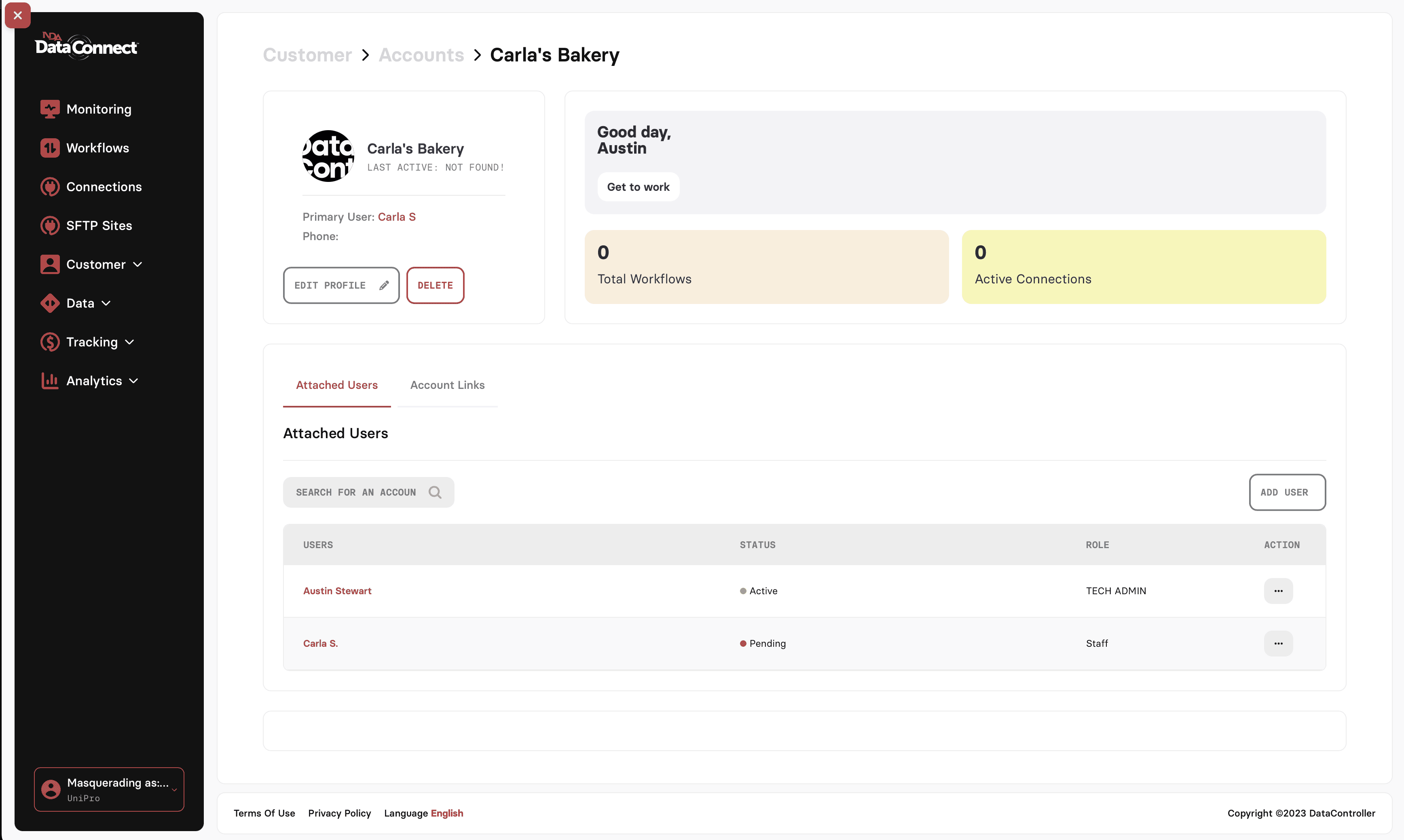
Scroll to Attached Users.
Select Add User.
Search for an existing user by name or email.
Assign a Role:
Tech Admin: Full admin access for system management.
Staff: Standard account-level access.
Send the invite.
The invited user will appear with Pending status until they complete activation. Active users show a green status indicator.
Updating or Removing an Attached User
From the account screen, go to Attached Users.
Click the ellipsis (...) next to the user.
Choose Edit to update their role, or Remove to detach them from the account.
For Roles, the following are available:
Business Admin
Account/Customer Specialist or A/C Specialist
Data Steward
Tech Admin
UniPro Linking Troubleshooting
If an account does not show any options for user management:
Confirm the UniPro link step has been completed.
Contact NDA support if you need access to uniPro linking tools, or if the UniPro record is missing.
Last Updated
Monday, October 27, 2025